
If you’ve Palo Alto NGFWs for a period of time, you may have used the External Dynamic List (EDL) function. This is basically a function that allows the firewalls to retrieve a list of URLs or prefixes from an external feed. In one of my previous jobs, we utilized a text document in an AWS bucket and utilized the file’s URL for the Palo Altos to use as a feed source.
While the process looks a little different, the same goal can be accomplished in Cisco’s NGFWs. For this example, the Firepower Management Center (FMC) will contain the dynamic object that can be reference by access policies for the managed FTDs.
First, you’ll log into your FMC. Go to Integration > Dynamic Attributes Connector.
Next, go to the Connectors tab. Create a new connector of the Generic Text type.
In the ‘Add Generic Text Connector’ window that appears, give it a name and description. Adjust the Pull Interval to the desired setting. In the URLs field, paste the URL of wherever is hosting the text document with the desired list of URLs/prefixes. This can either be from AWS, Azure, or from any other webserver that’s accessible by your FMC. The URL is retrieved by navigating to your text file in your Azure storage container/AWS bucket. There will be an option to copy the URL of the object from there.
After providing the URL, optionally click Test to verify your FMC can successfully connect to that URL. Click Save.
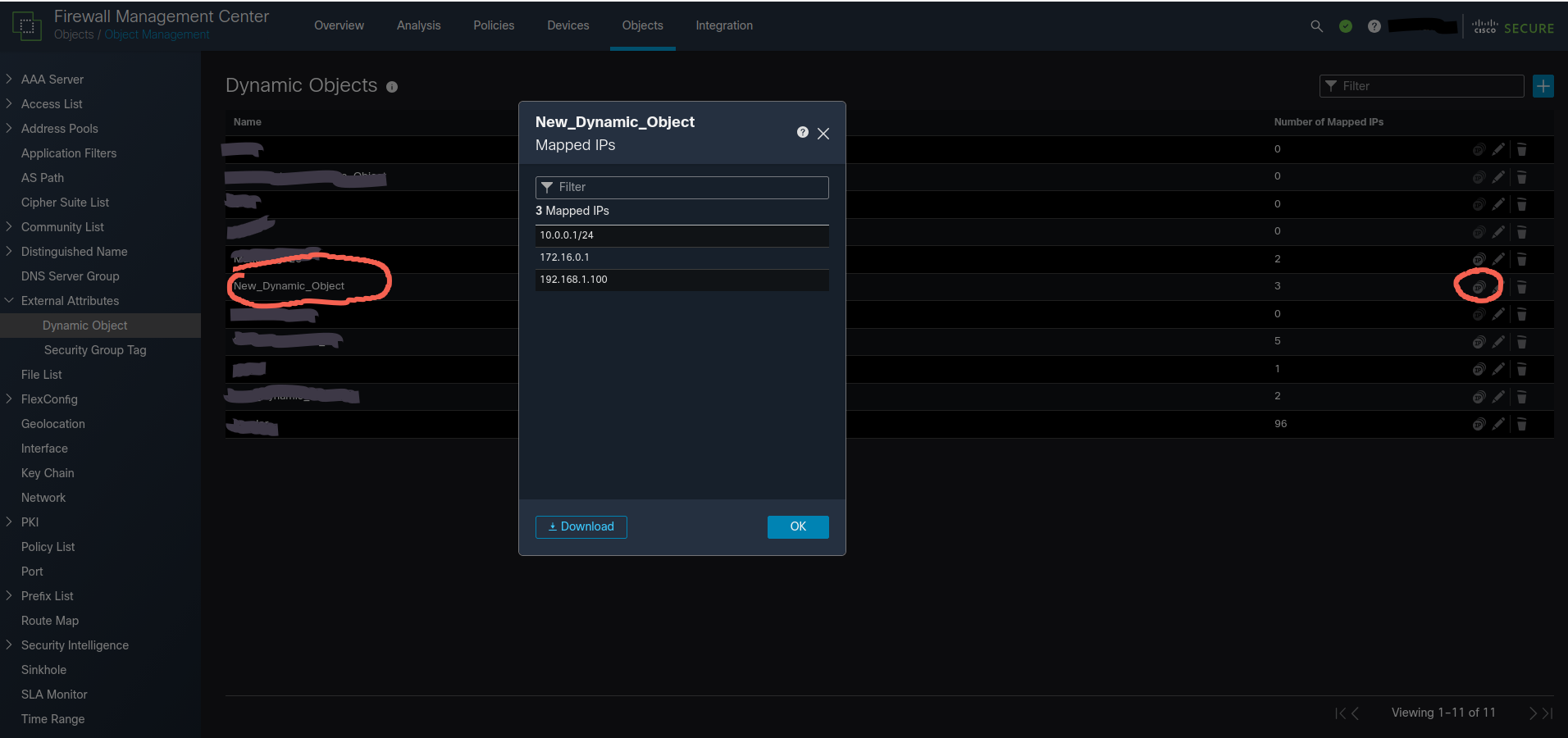
You should now see a dynamic object created in Objects > Object Management > External Attributes > Dynamic Object. You can view the mapped IPs from this menu to verify the object contains all of the entries in your text file.
At this point, you’re ready to create an ACP rule to reference this new dynamic object. To add the dynamic object to a rule, it will not be in the Networks tab of the rule creation window. It’ll be in the Dynamic Attributes tab instead.
That’s it! The process is fairly simple and straightforward but took me some time to research the Cisco FMC equivalent of a PA Panorama EDL. This can be a simple, centralized way to manage blocklists or allowlists.
Useful Links: